
Imagine this: you need a presentation for a meeting in 2 hours. PowerPoint — forget it. Canva — too slow. Hiring a designer — expensive.
That is exactly why Gamma AI was created — a service that turns an ordinary text prompt into a ready-made, beautiful, structured presentation in less than a minute.
Today, Gamma has 70 million users worldwide, a company valuation of $2.1 billion, and a reputation as the fastest AI tool for presentations. At the same time, the basic version is free, and to get started — you only need a Google account.
In this guide, we will break down: what Gamma AI is, how it works, which version to choose, and how to get your first ready presentation in 5 minutes.
What is Gamma AI — explained in simple terms
Gamma is an online platform that uses artificial intelligence to automatically create presentations, documents, and web pages. You enter a topic or a short description — and the service builds the structure, writes the text, selects the design, and adds images on its own.
Unlike ChatGPT or Gemini, Gamma does not just generate text — it immediately gives you a ready visual product: slides with design, colors, headings, and proper formatting. You do not need to do anything else manually.
What Gamma AI can do:
- Generate presentations (from 10 to 75 slides depending on the plan)
- Create documents and landing pages in a website-like style
- Turn PDF, Word, or PowerPoint files into new presentations
- Support real-time collaboration (like Google Docs)
- Embed videos, GIFs, polls, charts, and forms directly into slides
- Publish a presentation via link or download it in PDF and PowerPoint format
The core idea of Gamma is this: instead of spending hours building slides, you describe what you want, and get a finished result in 60 seconds.
Who Gamma AI is for
Gamma is aimed at a broad audience — not only designers or marketers.
Students and school pupils — course project defenses, reports, educational materials. Instead of 3 hours in PowerPoint — 5 minutes in Gamma.
Entrepreneurs and startup founders — investor pitch decks, product presentations, team reports. Gamma understands business structure and builds slides logically.
Marketers and SMM specialists — client reports, strategy presentations, content plans in slide format.
HR and managers — onboarding materials, quarterly reports, training programs.
Freelancers — quickly formatting client proposals, portfolios in presentation format.
Teachers and lecturers — study materials, lectures, teaching guides.
If you are interested in what other AI tools are actually useful for work — read our article Best AI Tools of 2026 →
How to sign up for Gamma AI — step by step
Step 1: Go to the website
Open gamma.app in your browser. Click the “Sign up free” or “Get started” button. Registration takes less than a minute.
Step 2: Sign in with Google
Gamma offers two ways to sign up: through a Google account (recommended — faster and easier) or through email and password. Choose Google, sign in — and you are in.
Step 3: Set up your profile
After signing in, Gamma will ask a few questions: what you plan to use the service for (study, business, team, personal), your experience with presentations, and preferred formats. You can skip them, but your answers help the AI better understand your prompts.
Step 4: Get free credits
After registration, you automatically receive 400 AI credits. One full 10-slide presentation costs about 40–50 credits. That means you can create 8–10 full presentations for free — more than enough to evaluate the service.
Pro tip: invite a friend via your referral link — for each successful registration, Gamma gives +200 credits to both you and the invited person. This can significantly expand your free balance.
How to create a presentation in Gamma AI — step-by-step instructions
Step 1: Start a new project
On the main page of your workspace, click the “+ New” or “Create” button. Gamma will offer three formats: Presentation (slides), Document (document page), and Webpage (landing page).
Choose Presentation.
Step 2: Choose the creation method
Gamma offers three paths:
- Generate — enter a topic, and the AI builds everything by itself (the fastest option)
- Paste in text — paste your own text, and Gamma will structure and format it
- Import file — upload a PDF, PPTX, or Word document, and Gamma will transform it
For the first time, choose Generate.
Step 3: Enter the topic and adjust settings
In the text field, type your topic. Gamma supports the Ukrainian language — you can enter your prompt directly in Ukrainian.
Examples of good prompts:
- “A presentation about the benefits of remote work for small businesses”
- “A pitch deck for a food delivery startup: problem, solution, market, team”
- “An educational presentation: what artificial intelligence is for 8th–9th grade students”
Then Gamma will offer you a choice of:
- Number of cards (slides) — from 8 to 25 (in the free version up to 10)
- Format — horizontal, vertical, or document
- Language — choose “Ukrainian”
Step 4: Generate — wait 30–60 seconds
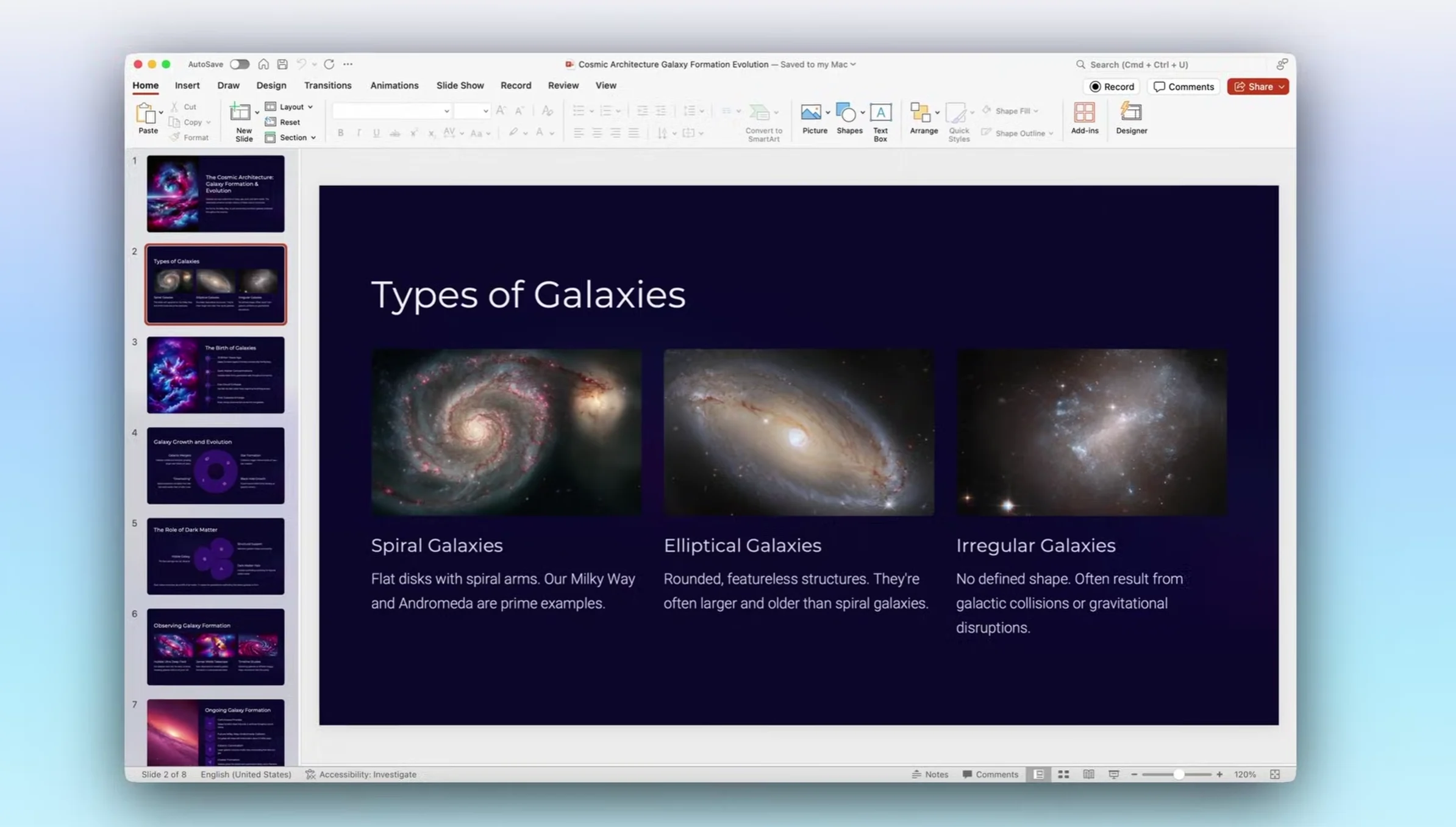
Click “Generate” and watch the slides appear within seconds. Gamma builds the structure, writes the text, selects images, and applies a design theme.
The result is a finished presentation with headings, subheadings, text, and illustrations. No blank slides, no “content goes here.”
Step 5: Edit and refine
Generation is only the start. Gamma provides a full editor:
- Click any text and edit it manually
- Select a card and ask the AI to “make this slide shorter” or “add more detail”
- Change the image — click the picture and choose another one from the library or upload your own
- Change the design theme — one click changes the colors and fonts of the entire presentation
- Add new cards and drag them into the right place
Step 6: Share or download
You can:
- Share a link — anyone with the link can view the presentation online
- Download as PDF — available in the free version
- Download as PowerPoint (.pptx) — available in the free version
- Publish as a webpage — Gamma gives you a link in the format gamma.app/your-presentation
Please note: in the free version, all published presentations display a “Made with Gamma” badge. To remove it — you need a paid plan.
Gamma AI — plans and pricing in 2026
As of April 2026, Gamma has four individual plans:
| Plan | Price | AI credits | Slides at a time | Key features |
|---|---|---|---|---|
| Free | Free | 400 (one-time) | up to 10 | Basic generation, PDF and PPTX export, Gamma badge |
| Plus | $8/month (annual) or $10/month | 1,000/month | up to 20 | No Gamma badge, custom colors and logo, advanced AI models |
| Pro | $18/month (annual) or $25/month | 4,000/month | up to 40 | View analytics, API access, custom domains (up to 10), custom fonts |
| Ultra | $100/month | 20,000/month | up to 75 | The newest AI models, Studio Mode, 100 custom domains |
For teams:
- Team — $20/month per seat (minimum 2 users): shared brand kit, admin panel
- Business — $40/month per seat (minimum 10 users): enterprise features
Which version should you choose
The free plan — if you want to try the service and make a few presentations for internal use. 400 credits are enough for 8–10 full presentations.
Plus ($8–10/month) — if you present to clients, partners, or in public. It removes the Gamma badge and gives you 1,000 credits monthly — enough for regular use 2–3 times a week.
Pro ($18–25/month) — if you need analytics (who viewed the presentation, for how long), your own domain, and full control over branding. For marketing teams and sales managers.
TechVisor tip: start with Free. 400 credits are genuinely enough to understand whether the service suits you. If you like it — Plus at $8/month on annual billing pays for itself after the very first client presentation.
Gamma AI vs. competitors — what makes it stand out
There are other AI tools for presentations on the market. Here is an honest comparison:
| Parameter | Gamma AI | Canva AI | Beautiful.ai | PowerPoint + Copilot |
|---|---|---|---|---|
| Generation speed | ⚡ ~60 seconds | 2–5 minutes | 2–3 minutes | 5–10 minutes |
| Quality of automatic design | ⭐⭐⭐⭐⭐ | ⭐⭐⭐⭐ | ⭐⭐⭐⭐ | ⭐⭐⭐ |
| Free version | Yes (400 credits) | Yes (limited) | Limited | No (requires M365) |
| Interactive elements | ✅ Video, forms, polls | ❌ Basic | ❌ Basic | ❌ Limited |
| Web publishing | ✅ Own URL | ❌ | ❌ | ❌ |
| PDF/PPTX import | ✅ | ✅ | ❌ | ✅ |
| Starting price | $8/month | $15/month | $12/month | from $6.99/month (M365) |
| Ukrainian language support | ✅ | ✅ | ⚠️ Partial | ✅ |
Conclusion: Gamma wins on speed, interactivity, and web publishing format. Canva is better for designing separate graphics and SMM materials. PowerPoint + Copilot is the choice if your whole team is already inside the Microsoft ecosystem.
Pros and cons of Gamma AI — an honest assessment

Pros
Incredible speed. From idea to finished presentation — less than a minute. This really changes the approach to preparation: instead of “I need to sit down and make a presentation,” it becomes “let me try it in 2 minutes.”
Beautiful design without effort. Gamma generates genuinely attractive slides — not templated and not amateurish. The design themes are modern, and the typography is correct.
Interactive elements. You can embed a YouTube video, a Typeform form, a poll, a live chart, or a Figma prototype directly into a slide. No other AI presentation tool does this in the same way.
Web format. The presentation lives as a web page — you can share a link, and the recipient opens it in a browser without downloading anything. Convenient for clients.
Collaboration. Like Google Docs — several people can edit at the same time, and all changes sync automatically.
Ukrainian language support. Gamma understands prompts in Ukrainian and generates content in Ukrainian.
Cons
Credit limit in Free. 400 credits are one-time only and do not refresh. If you use the service actively, they will run out in 2–3 weeks.
“Made with Gamma” badge in the free version. For client-facing and public presentations, this may be inconvenient — it can look unprofessional.
Less customization than PowerPoint. If you need pixel-perfect control over every element, Gamma is not for you. It is optimized for speed, not maximum flexibility.
Complex animations are unavailable. Gamma does not create complex slide transitions like PowerPoint. Animation is minimal.
The interface is in English by default. While the content is generated in Ukrainian, the platform interface is mostly in English. It can be changed in settings, but beginners may still find this confusing.
Useful tips for working with Gamma AI
A more detailed prompt = a better presentation. Instead of “presentation about marketing,” try “a presentation for small business clients about 5 Instagram content marketing strategies for increasing sales.” The more precise you are, the more accurate the result will be.
Use text import. Do you already have a draft or notes? Paste them into Gamma through “Paste in text” — it will structure and format your content into slides by itself.
Edit through AI commands. Do not fix everything manually — click on a slide and type in the chat “make this slide shorter” or “rewrite it more formally.” Gamma will do it.
Change the theme in one click. If you do not like the design, there is a “Themes” option in the top menu. One click — and the entire presentation design changes. The texts and structure stay the same.
Earn credits through referrals. Share your referral link with colleagues or students — +200 credits for each one.
Frequently asked questions about Gamma AI (FAQ)
Is Gamma AI free?
Yes, there is a free version with 400 AI credits — enough for about 8–10 full presentations. The credits are one-time and do not renew (except through referral rewards). For ongoing use, you need a paid plan starting from $8/month.
Does Gamma AI support Ukrainian?
Yes. You can enter a prompt in Ukrainian, and Gamma will generate the presentation in Ukrainian. In the account settings, you can also switch the interface to Ukrainian.
Can I download the presentation in PowerPoint?
Yes, even in the free version. Gamma allows you to export presentations in PDF and PPTX (PowerPoint) formats. This is convenient if you need to send the file to people who do not have a Gamma account.
How is Gamma AI different from ChatGPT?
ChatGPT generates text — you get text. Gamma generates a finished visual product — you get a formatted presentation with slides, design, and images. These are different tools for different tasks. ChatGPT + Gamma is an excellent combination: ChatGPT writes the content, and Gamma turns it into slides.
Can Gamma be used for teamwork?
Yes. Gamma supports real-time collaboration — several people can edit the same presentation at once, just like in Google Docs. There are separate Team and Business plans for team use.
Is Gamma AI safe? Is my data stored?
Gamma is certified under the SOC 2 Type II standard — a serious data security standard trusted by corporations. Your presentations are stored in Gamma’s cloud. If you work with confidential materials, carefully read their Privacy Policy or consider a plan with password protection for presentations (available in Pro).
Is Gamma AI suitable for school pupils and students?
Yes, this is one of the most popular use cases. Students use Gamma for course defenses, reports, and group projects. The free version is fully suitable for educational purposes.
Conclusion
Gamma AI is one of those tools after which it is hard to go back to the old way of working. Not because it is perfect — PowerPoint gives more control, Canva gives more design freedom. But because Gamma gives what is often missing most: speed and convenience.
If you need a solid presentation in 5 minutes — Gamma AI handles it better than anything else currently on the market in 2026. And the free version is enough to prove that to yourself.
→ Try it: gamma.app — registration takes 30 seconds.
Want to learn more about useful AI tools for everyday work? Read our article Best AI Tools of 2026: top 10 for Ukrainians →
Article prepared by the TechVisor team — practical IT media for people.